
Business Connectors™
Business Connectors™ are the prebuilt integrations that connect Outcome Cloud™ to the line-of-business systems your organization already runs. Documents and data move in both directions: source documents arrive for classification and extraction, and validated results — an approved invoice, a completed intake, a matched payment — post back to the system of record. The connector is what turns a document process into a completed business outcome.
Automation that stops at the platform’s edge isn’t automation
When extracted data has to be re-keyed into accounting, when approvals live in one system and the records in another, the manual work just moves downstream — and the outcome never quite gets delivered. Business Connectors™ close that gap.
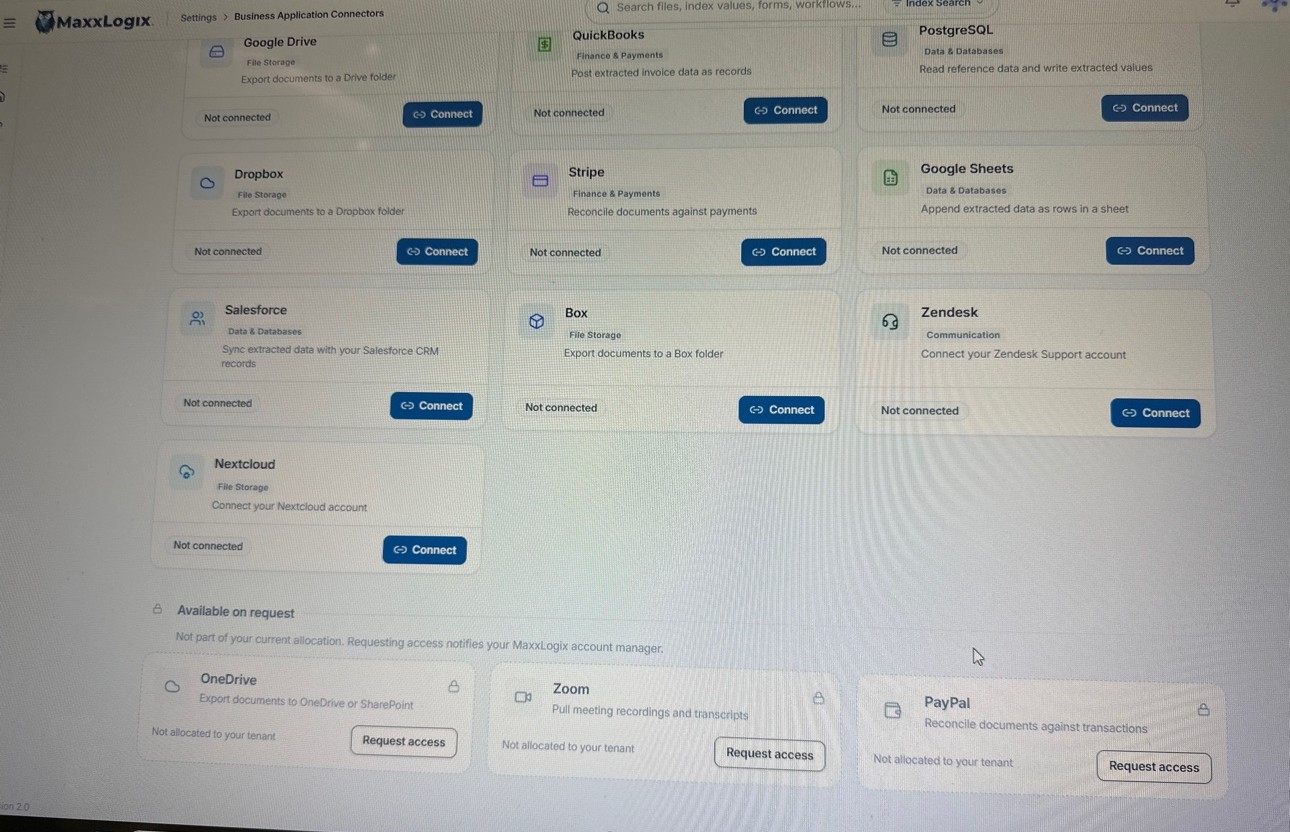
What connects today
File Storage
- Google Drive — export documents to a Drive folder
- Dropbox — export documents to a Dropbox folder
- Box — export documents to a Box folder
Finance & Payments
- QuickBooks — post extracted invoice data as records
- Stripe — reconcile documents against payments
Data & Databases
- PostgreSQL — read reference data and write extracted values
- Google Sheets — append extracted data as rows in a sheet
- Salesforce — sync extracted data with your Salesforce CRM records
Communication
- Zendesk — connect your Zendesk Support account
File Storage

Google Drive — export documents to a Drive folder
Dropbox — export documents to a Dropbox folder
Box — export documents to a Box folder
Finance & Payments
Post extracted invoice data as records
Reconcile documents against payments
Data & Databases

PostgreSQL — read reference data and write extracted values
Google Sheets — append extracted data as rows in a sheet
Salesforce — sync extracted data with your Salesforce CRM records
Communication
Zendesk — connect your Zendesk Support account
Also available: OneDrive (export documents to OneDrive or SharePoint), Zoom (pull meeting recordings and transcripts), and PayPal (reconcile documents against transactions).
Microsoft Dynamics connectors arrive in January 2027 — and the connector library grows every month.
Why it matters
- Connect, don’t replace — prebuilt connectors for the systems your teams already run, plus webhooks and the Outcome API™ (OpenAPI) for everything else your stack holds.
- Data in, outcomes out — IDP Outcomes™ extracts the data; Outcome Workflows™ moves it through approvals and exceptions; the connector posts the validated result back — counted once, as one outcome, however many steps it took.
- Configured in your workflows, not custom code — authenticate each connector once; what it actually does is configured step by step inside your workflows.
- Every exchange auditable — connector traffic inherits Outcome Cloud’s™ security and traceability: permission-aware, logged, and governed by the same rules as the repository.
Outcome API™ — for everything else your stack holds
Prebuilt connectors cover the systems your teams already run. For everything else, webhooks and the Outcome API™ (OpenAPI) connect the rest of your stack — and every exchange inherits Outcome Cloud’s™ security and traceability.
The pattern, working end to end
N-Way Match™, Outcome Cloud’s™ core matching capability, works with the QuickBooks connector so an invoice can be imported, read, approved, and posted to QuickBooks as one completed outcome — counted once, as “Invoice approved and entered.”
The invoice arrives and is imported through the connector — no re-keying.
IDP Outcomes™ reads it, N-Way Match™ verifies it, and Outcome Workflows™ carries it through approval.
The validated result posts back to the system of record — counted once, as one outcome: “Invoice approved and entered.”
From document intake to validated business transactions — one platform, one automated outcome.
See it in action — tell us which systems your documents need to reach, and we’ll show you the connection. Contact us