Outcome Workflows™
Workflow automation that ends in an outcome
Outcome Workflows™ is the workflow engine of Outcome Cloud™. It moves work — approvals, reviews, signatures, exceptions — from person to person and system to system with rules, deadlines and a complete audit trail, so every process ends in a business outcome: what got done, who did it, and the record to prove it.
See what your approvals could look like — talk to MaxxLogix.
Approvals without the chase
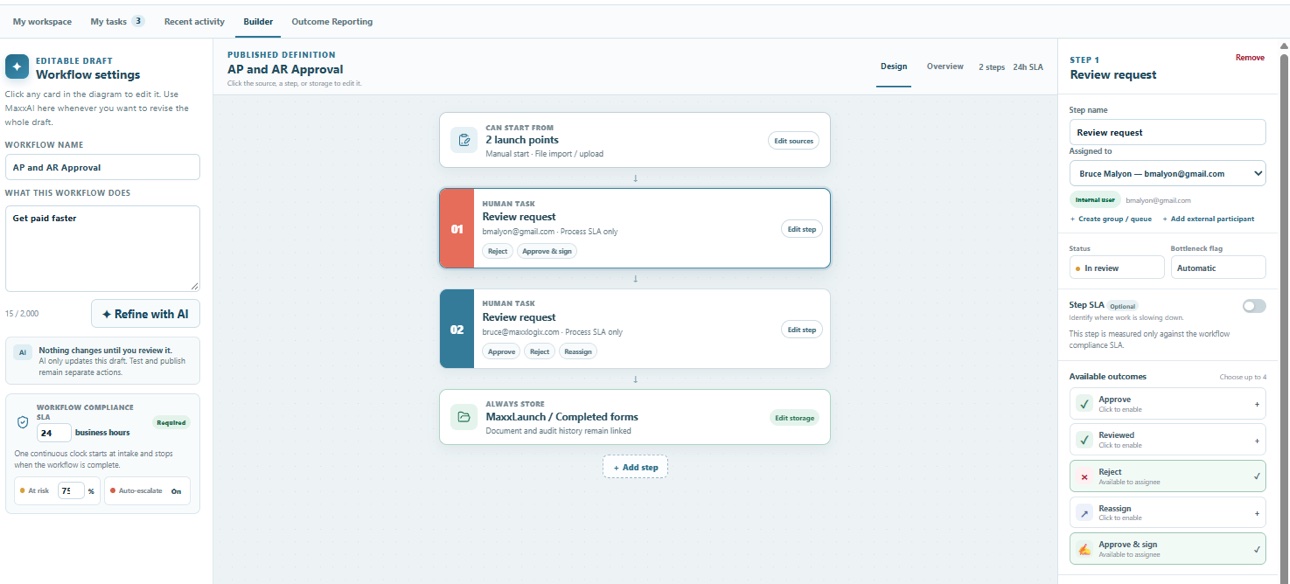
- Route documents and data to the right people automatically, based on your rules
- Parallel and sequential approvals, with reminders and escalation when work stalls
- Delegate when someone is out — the audit trail never breaks
Digital signatures, built in
Collect legally binding e-signatures inside the workflow — no separate tool, no printing and scanning. Signing is compliant with the ESIGN Act and UETA, and every signature is recorded in the audit trail.
Exceptions handled, not buried
When something doesn't match, Outcome Workflows™ routes it as an exception with the context attached — the document, the data and the decision history — so the right person resolves it fast and the process keeps moving.
Connected to the whole platform
Workflows start from intake — MaxxLaunch™ forms and IDP Outcomes™ — work from the governed content in Outcome Repository™, and MaxxLogix® SI™ watches every step, surfacing bottlenecks and recommendations priced by business value, never by tokens.
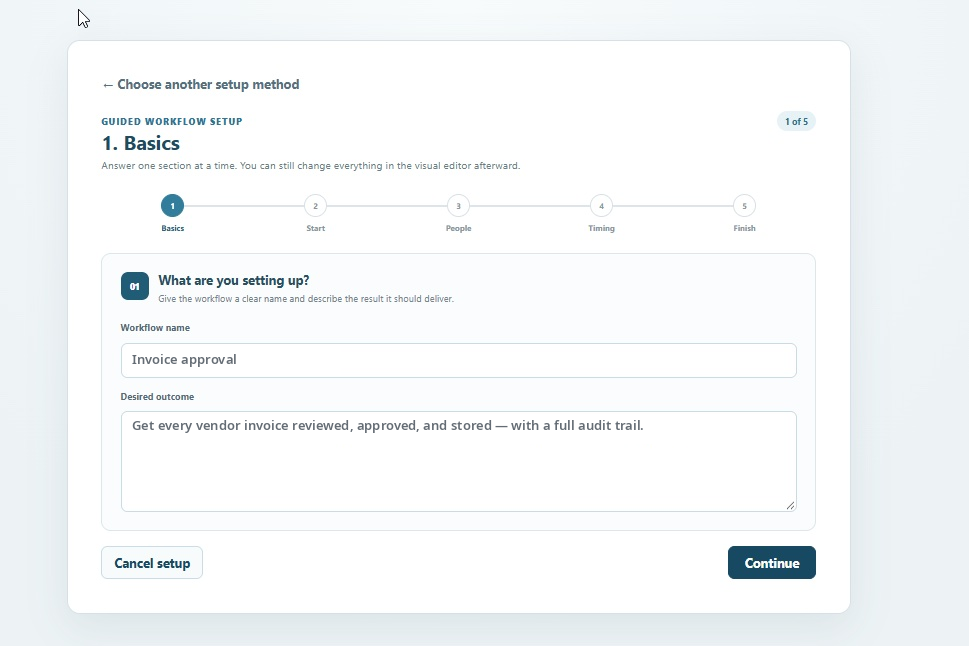
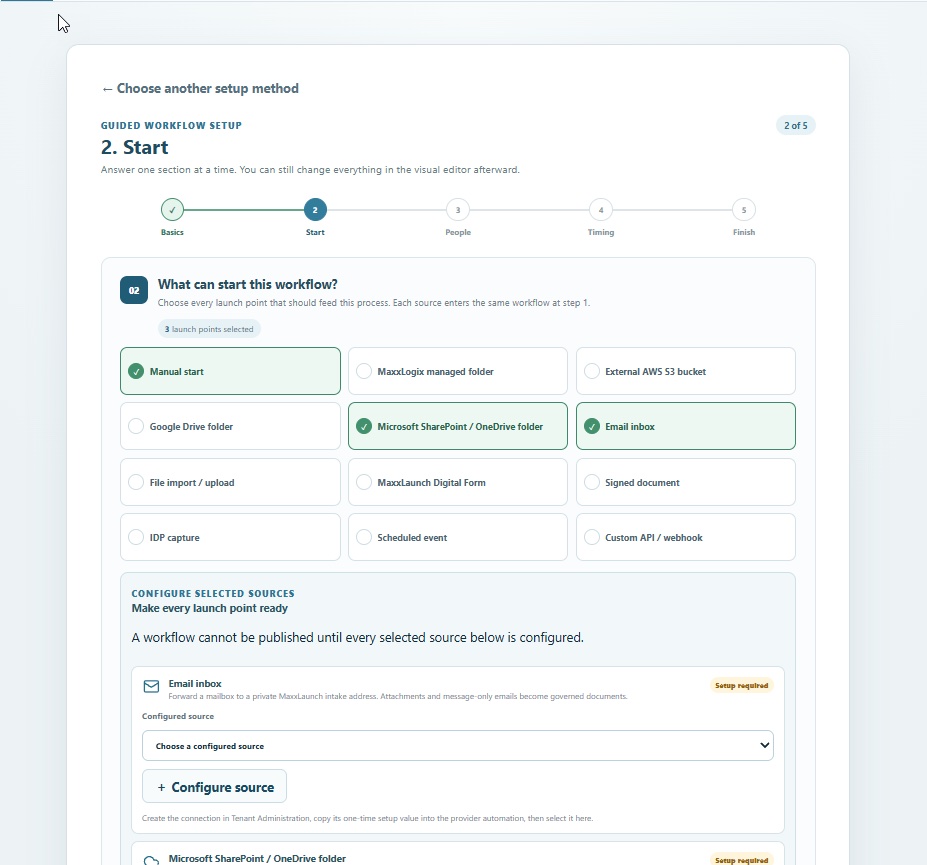
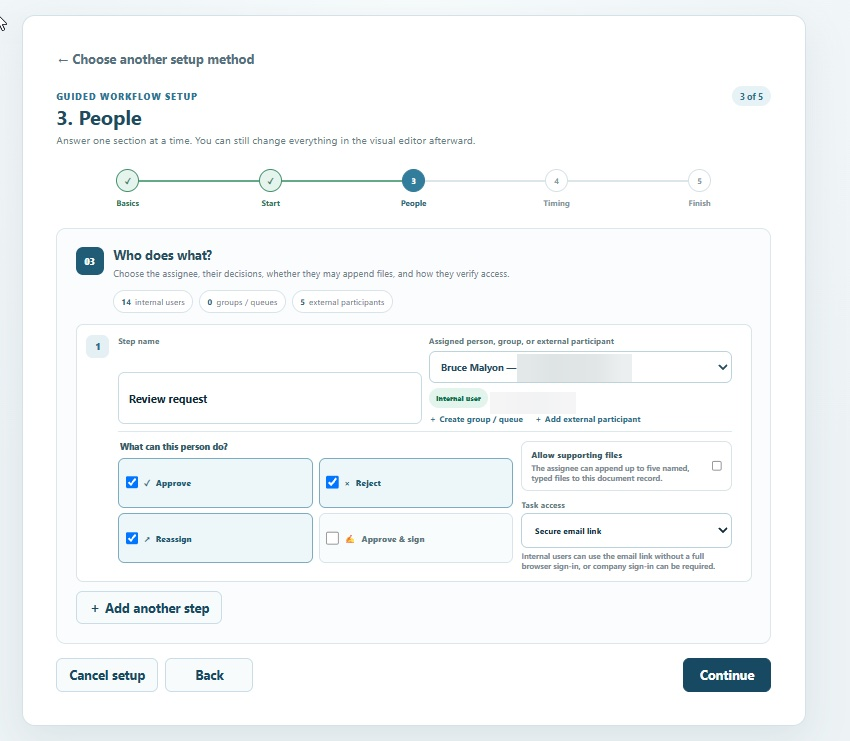
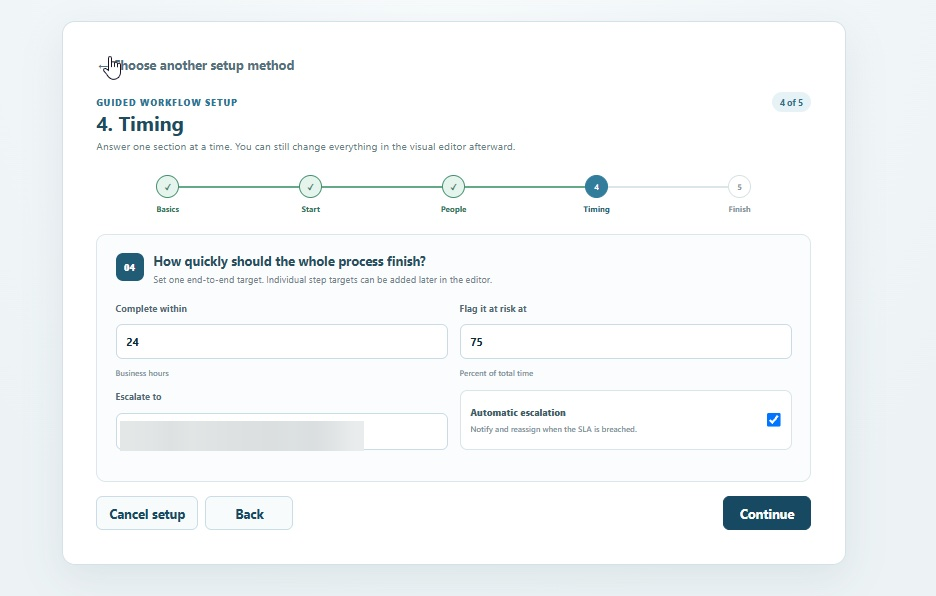
Build a workflow in five questions
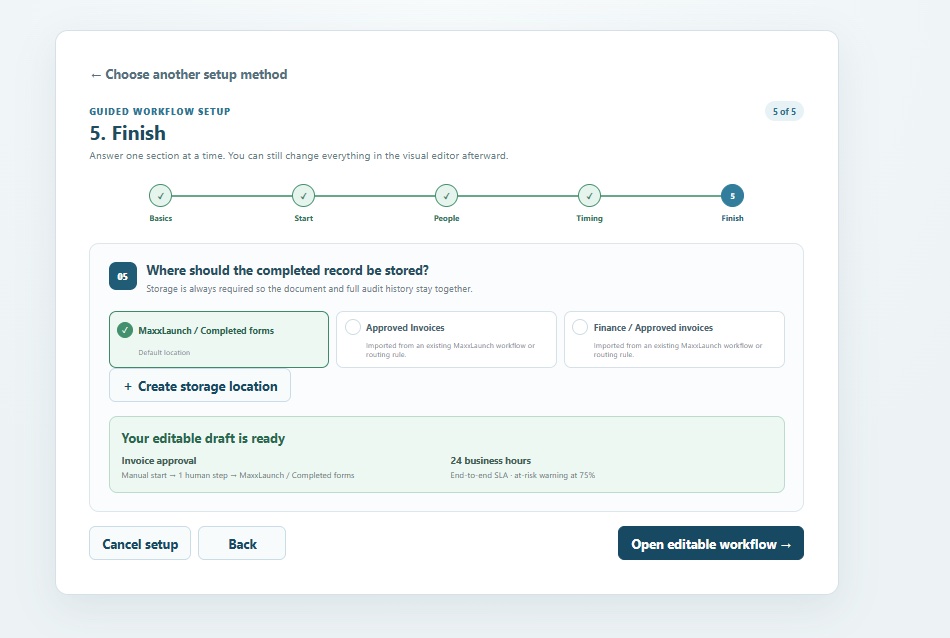
No blank canvas, no manual. The Workflow Wizard asks five questions and builds the workflow with you — scroll through the actual screens, building an invoice approval workflow end to end.